Free Image to Image AI Generator
Add an image and say what to change. A free image to image tool and AI image generator from image that keeps your subject and redraws the rest. 3 free a day, no sign up, no watermark.
Your images will appear here. Uploads are deleted automatically within 24 hours.
Generating your imageabout 35 s
You can write the next prompt while this finishes.
This one didn't generate.
01 · Outfits and hair
Change the outfit, keep the person
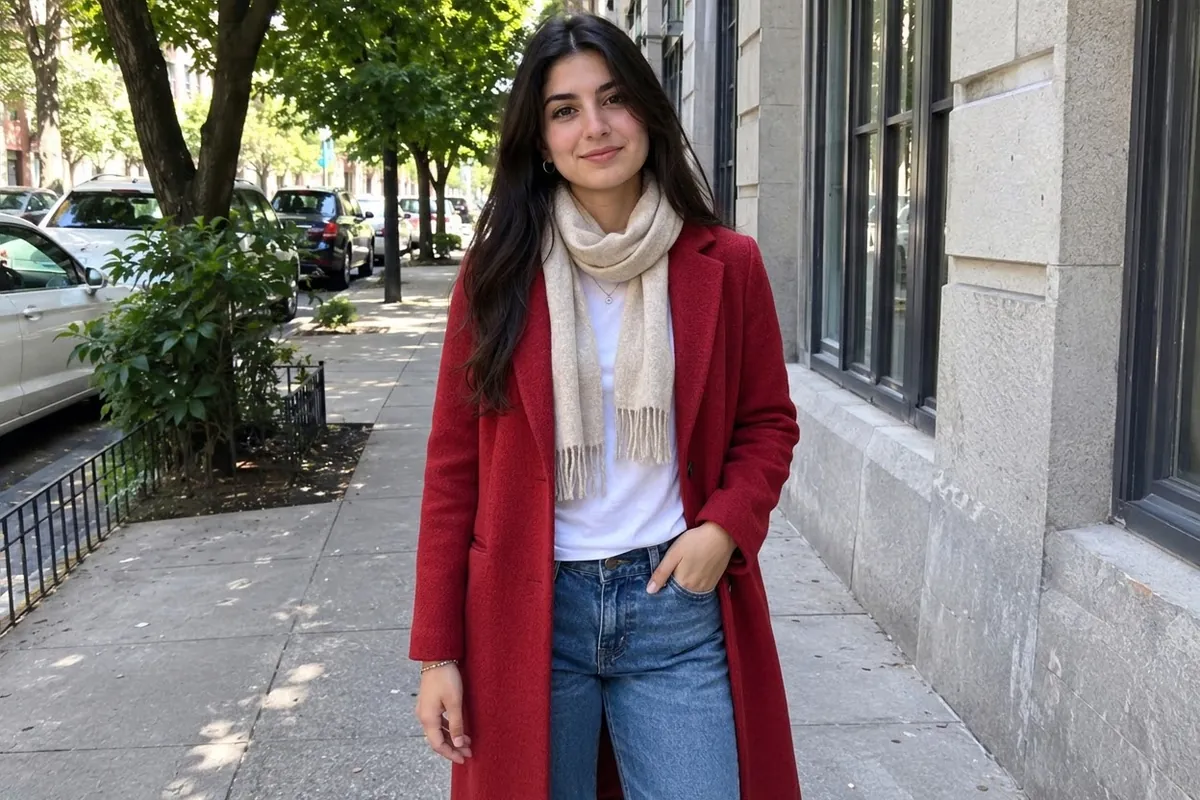
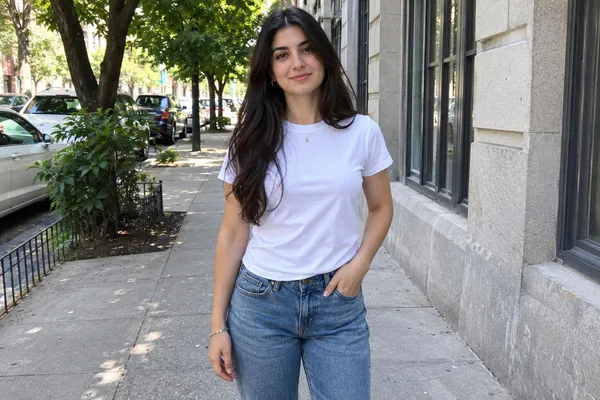
Try a coat, a jacket or a haircut on a photo you already have. With image to image the face, pose and background stay put.
Put her in a long red wool coat with a scarf. Keep her face, pose and the street.
02 · Product photos
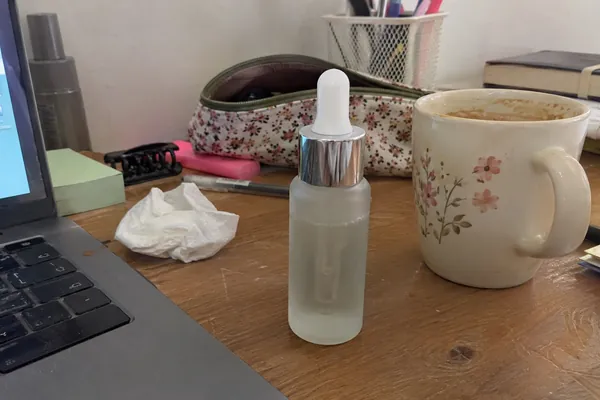
From desk snapshot to store-ready shot
One casual photo of the product in. A studio shot, a lifestyle scene and an ad visual out, without a reshoot.
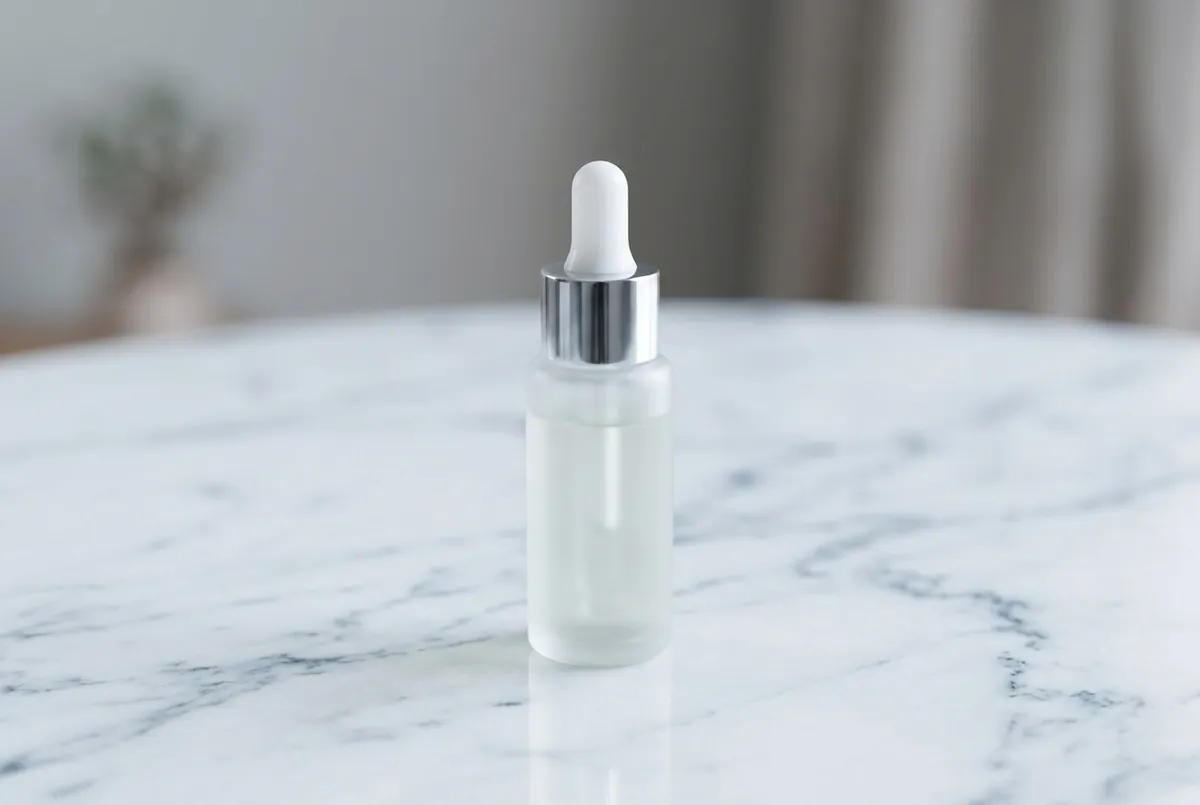 Studio on marble
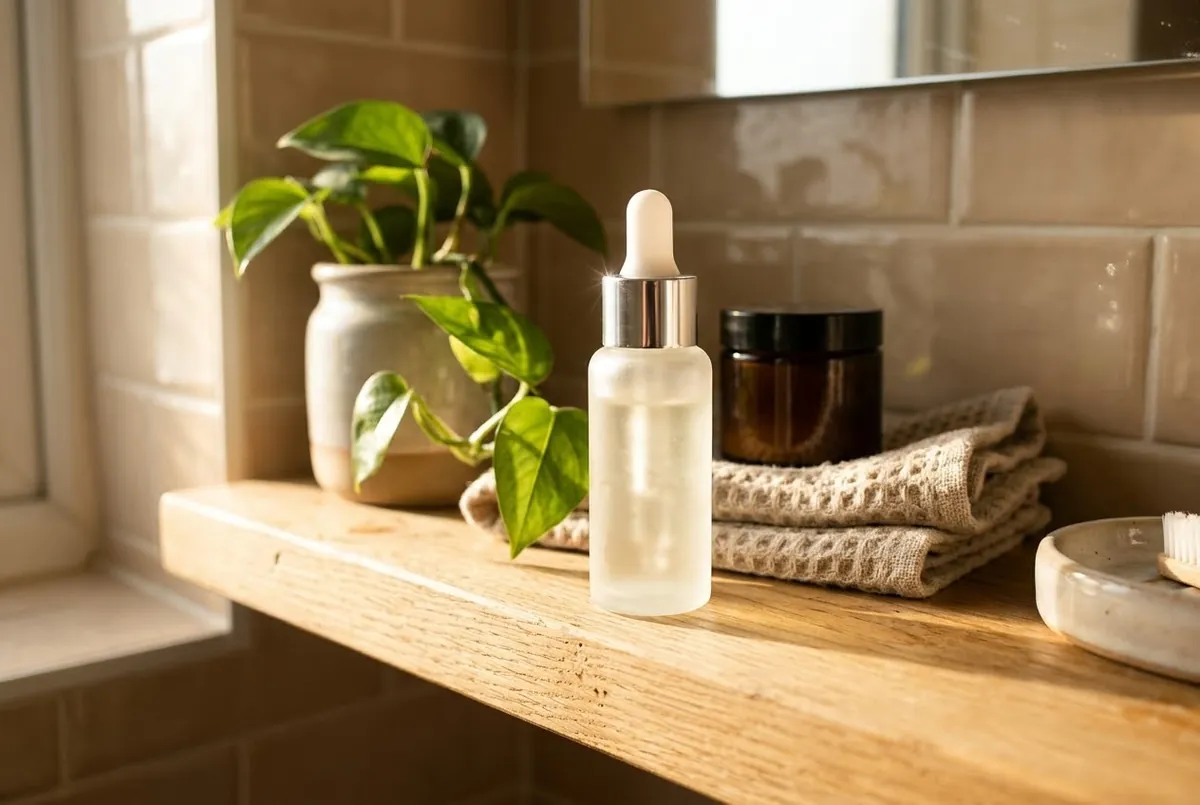 Lifestyle scene
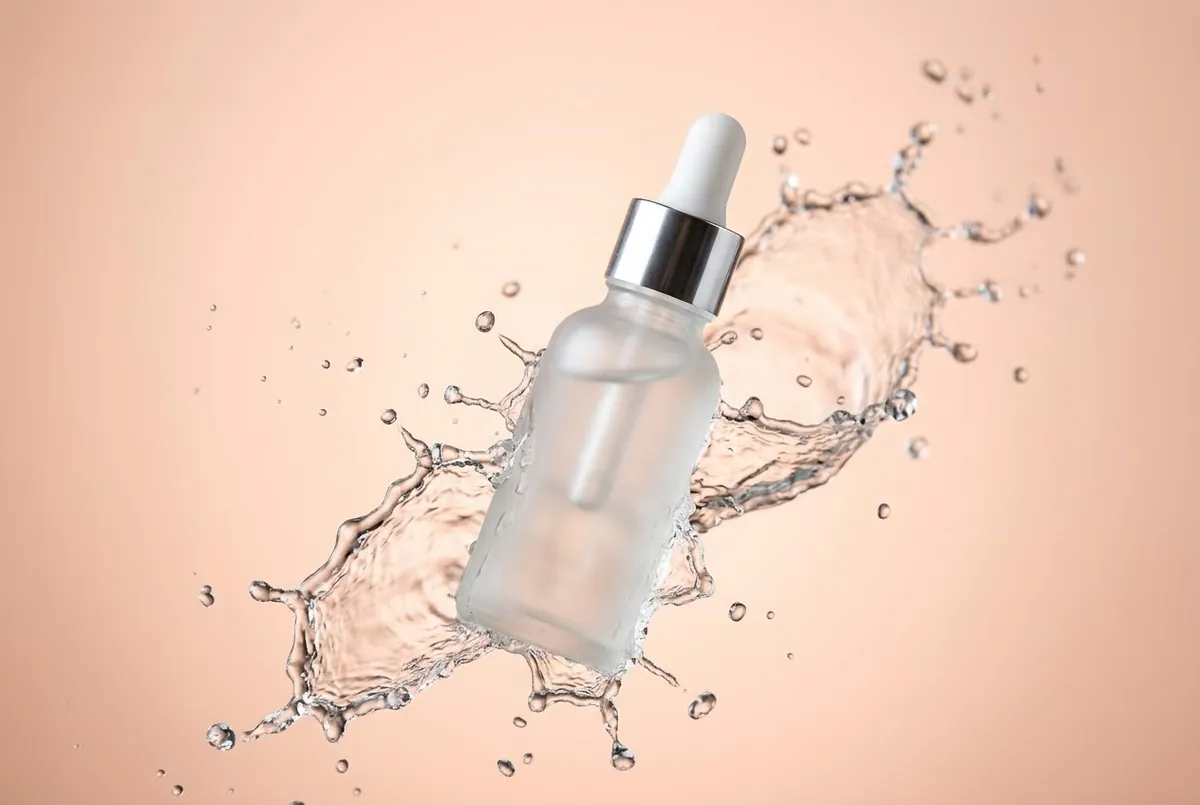 Ad visual
03 · Styles
One photo, any style
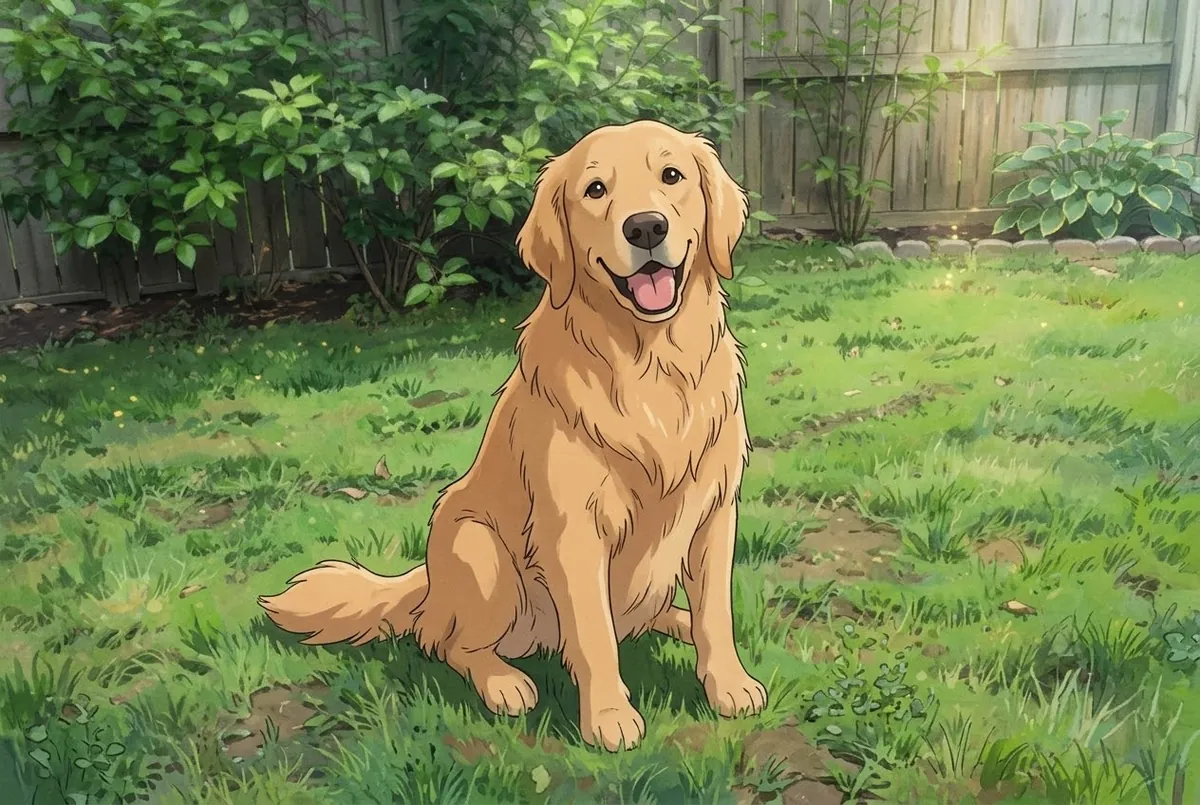
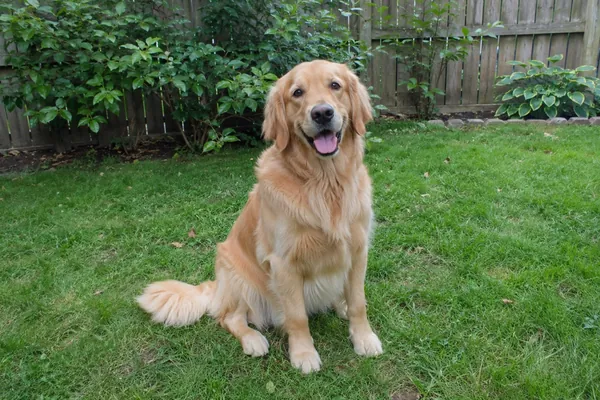
Anime, pixel art, sketch, watercolor, a 3D figurine or clay. Image to image keeps the subject recognisable in every one.
Redraw this as a hand-painted anime film still. Same dog, same pose.
04 · Multiple images
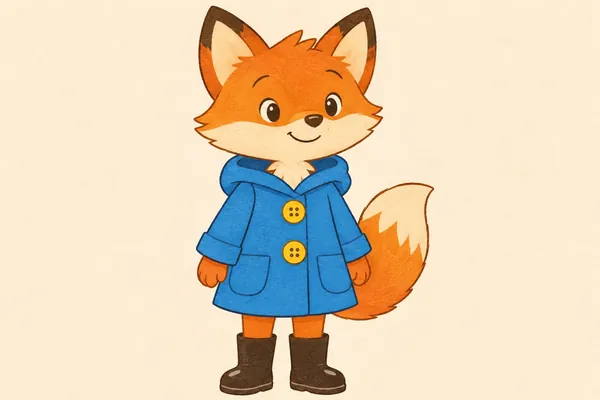
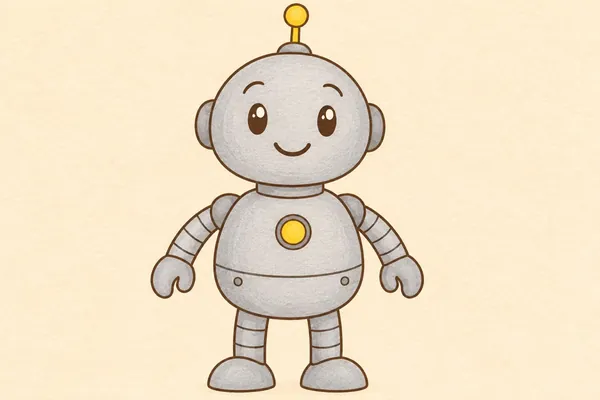
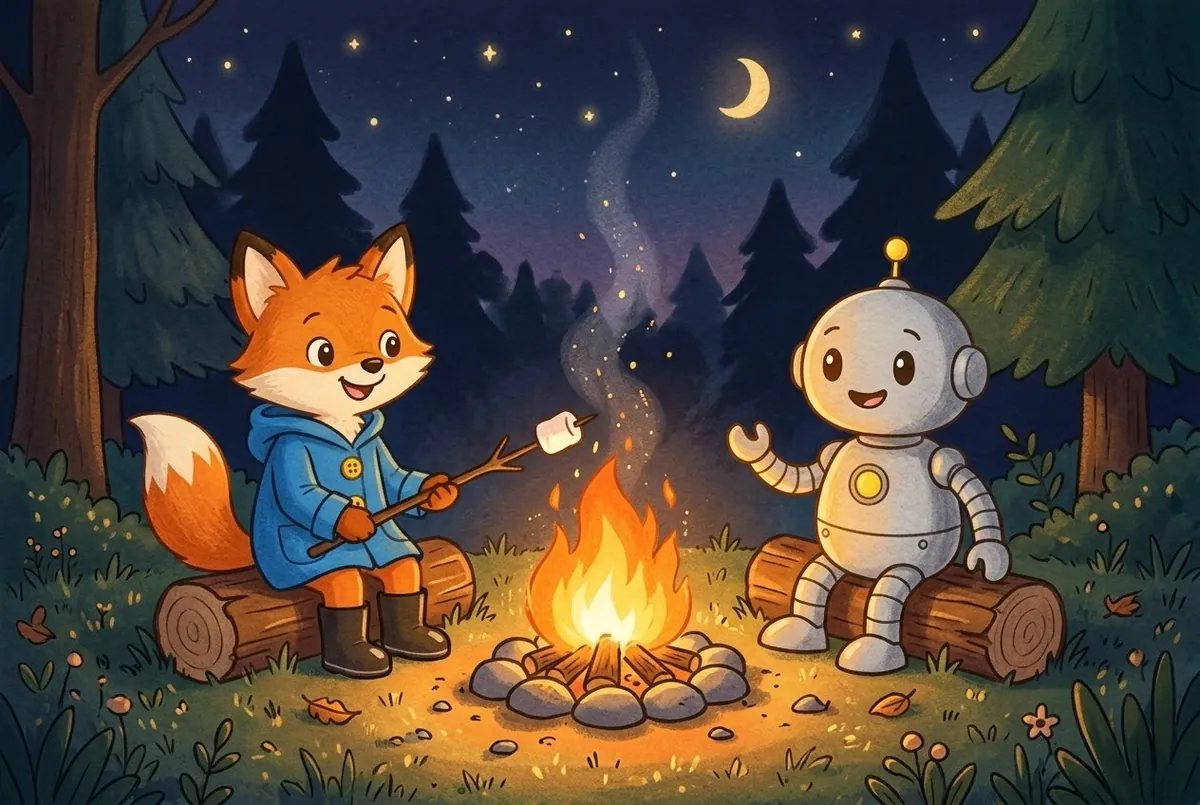
Combine images, keep every character
Add up to three images. Put two characters in one scene, or carry one character into a new one.
05 · Photo edits, sketches and spaces
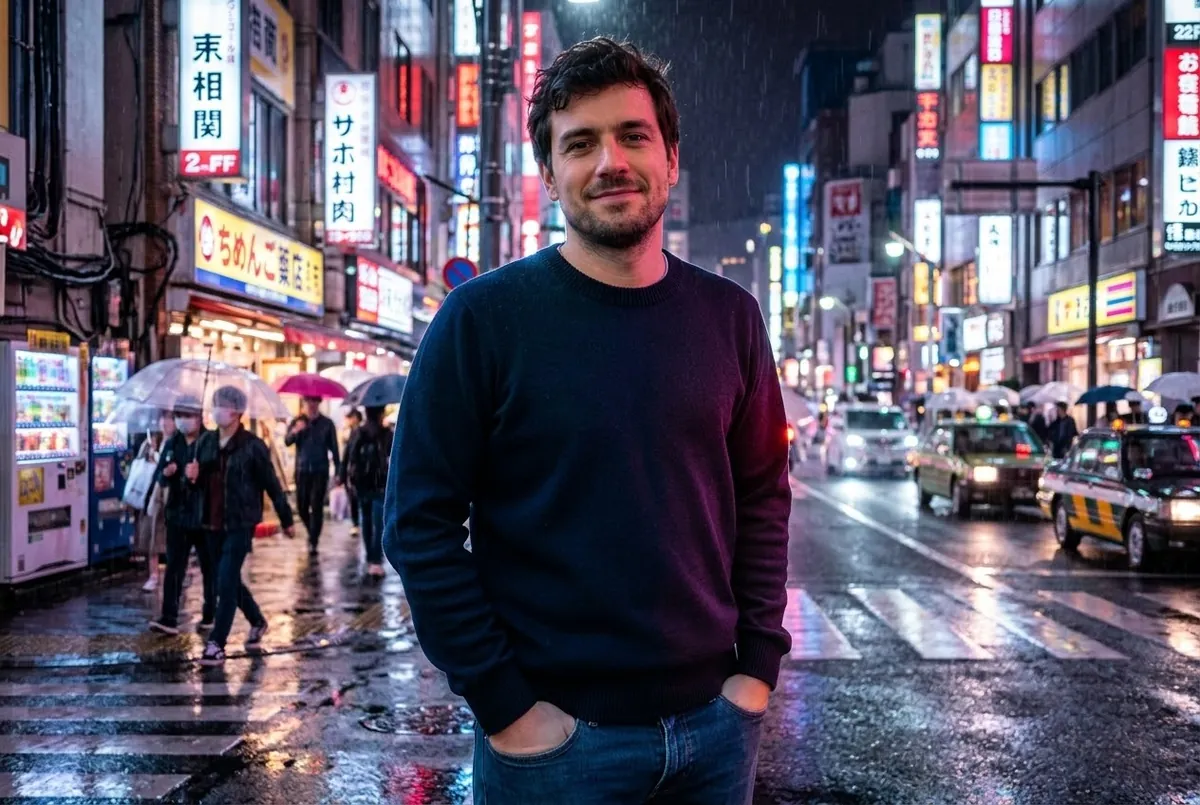
Drag to see what one sentence changed
Swap a background, bring an old photo back, turn a sketch into a render or furnish an empty room.
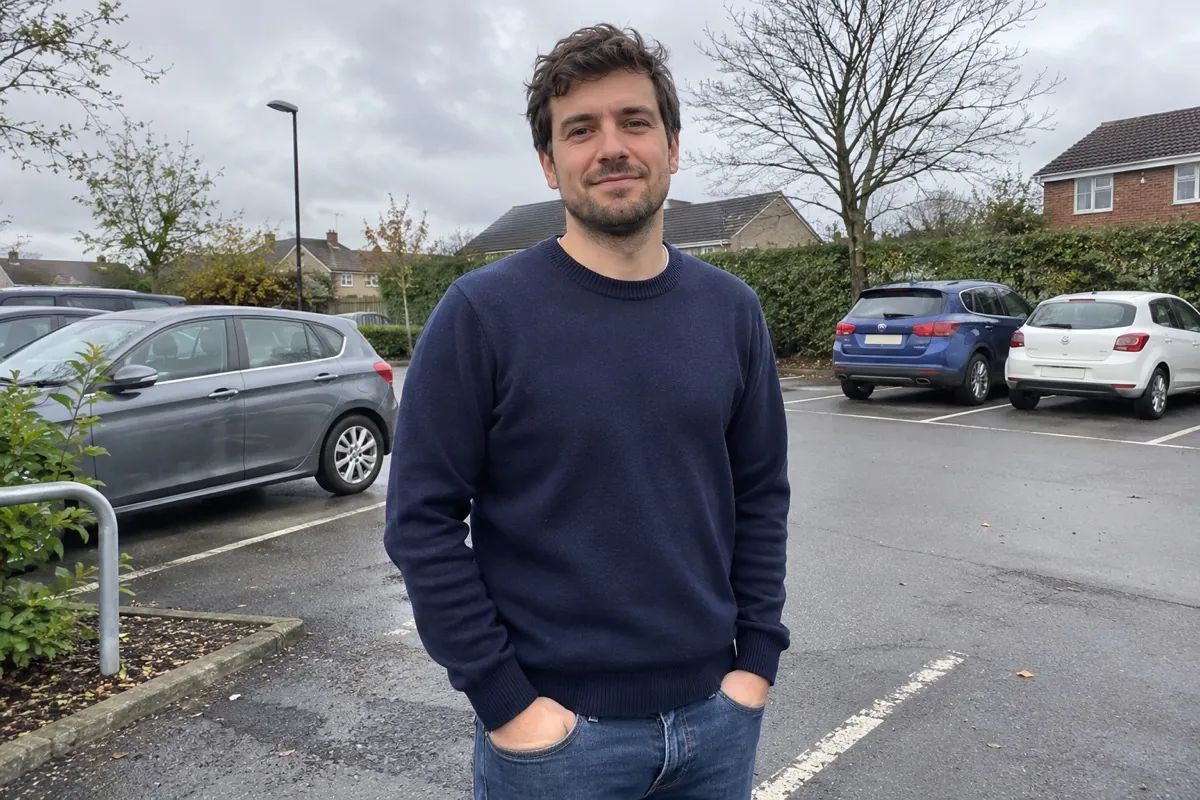 New background
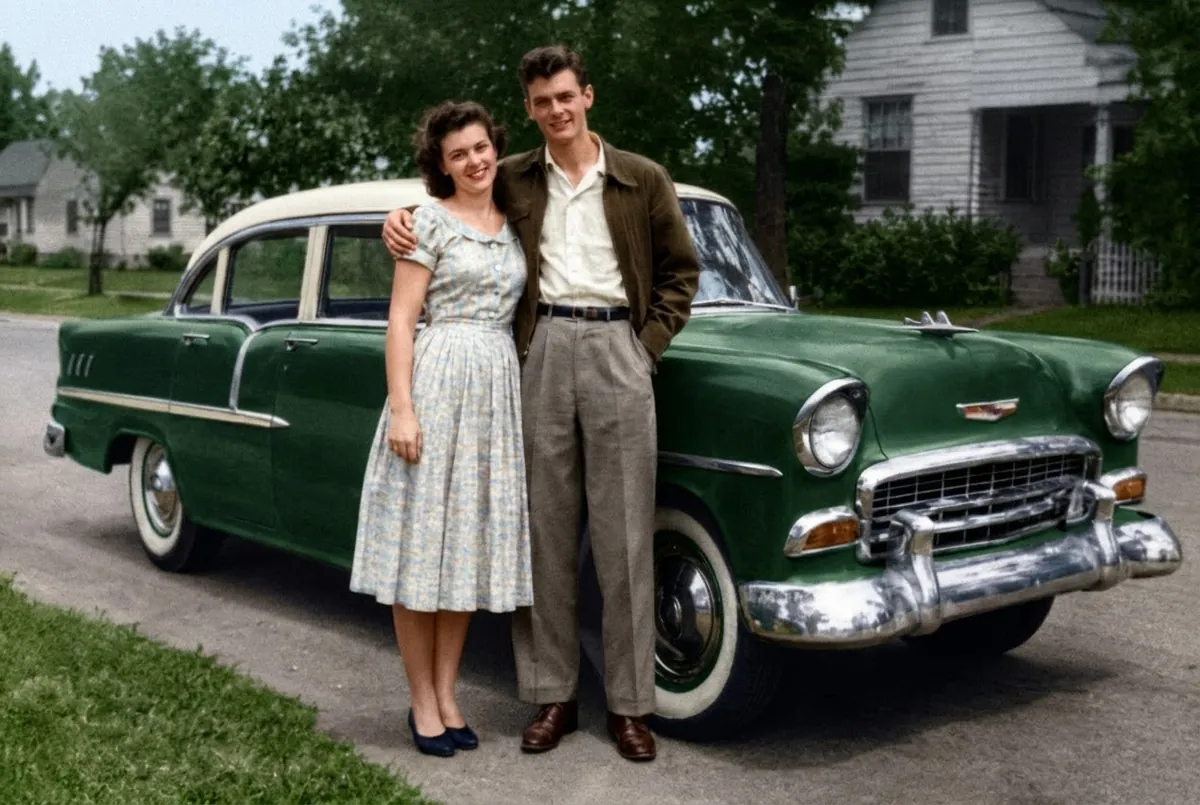
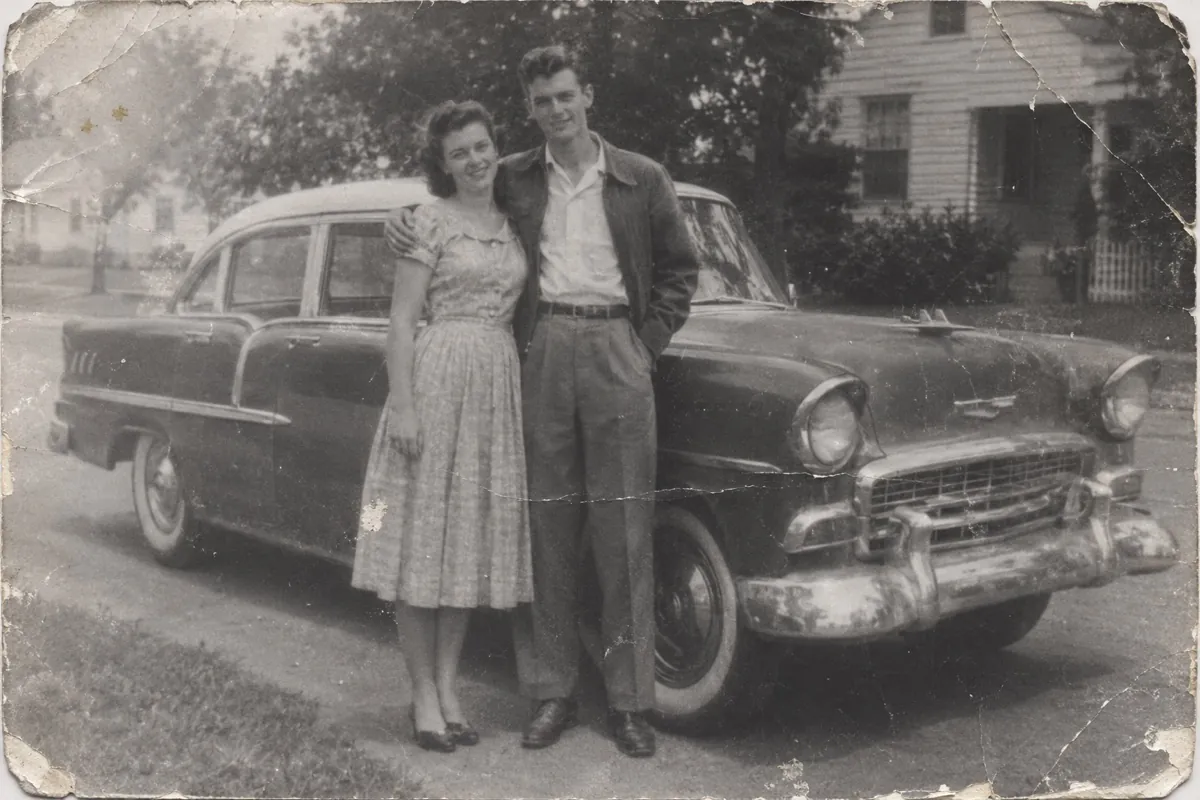 Restore and colorize
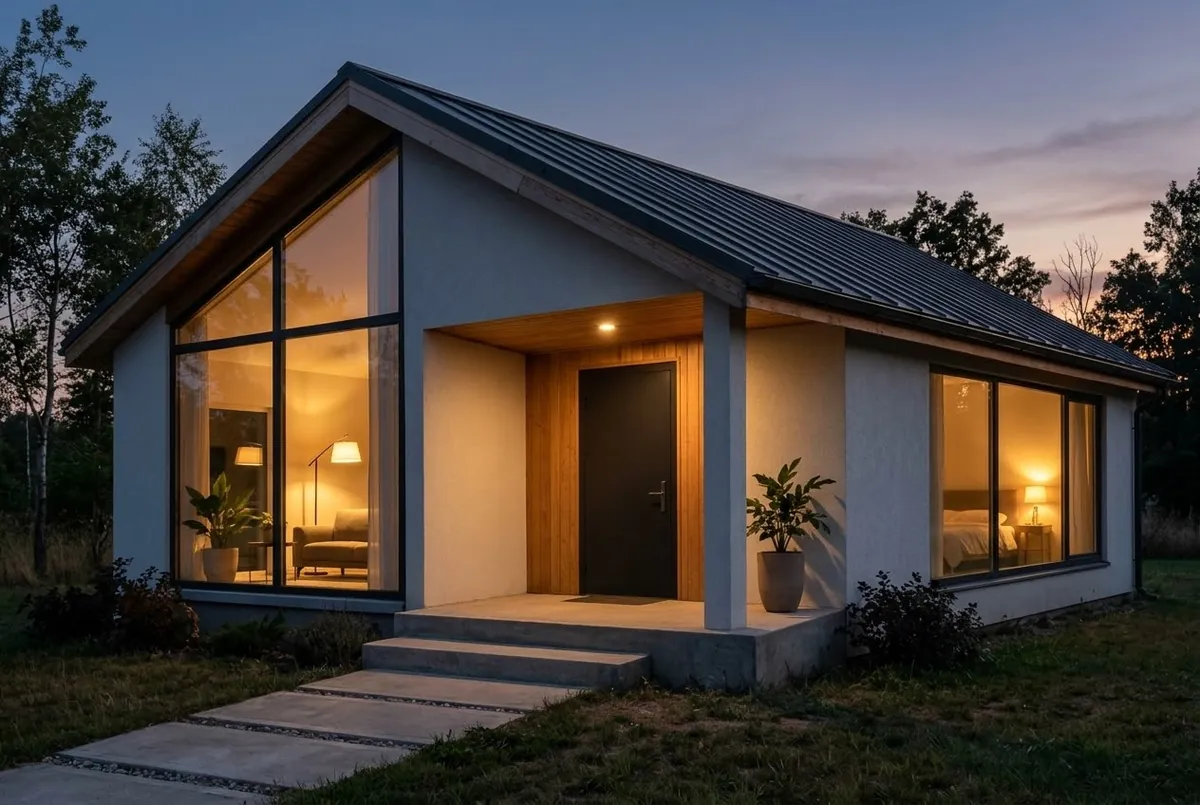
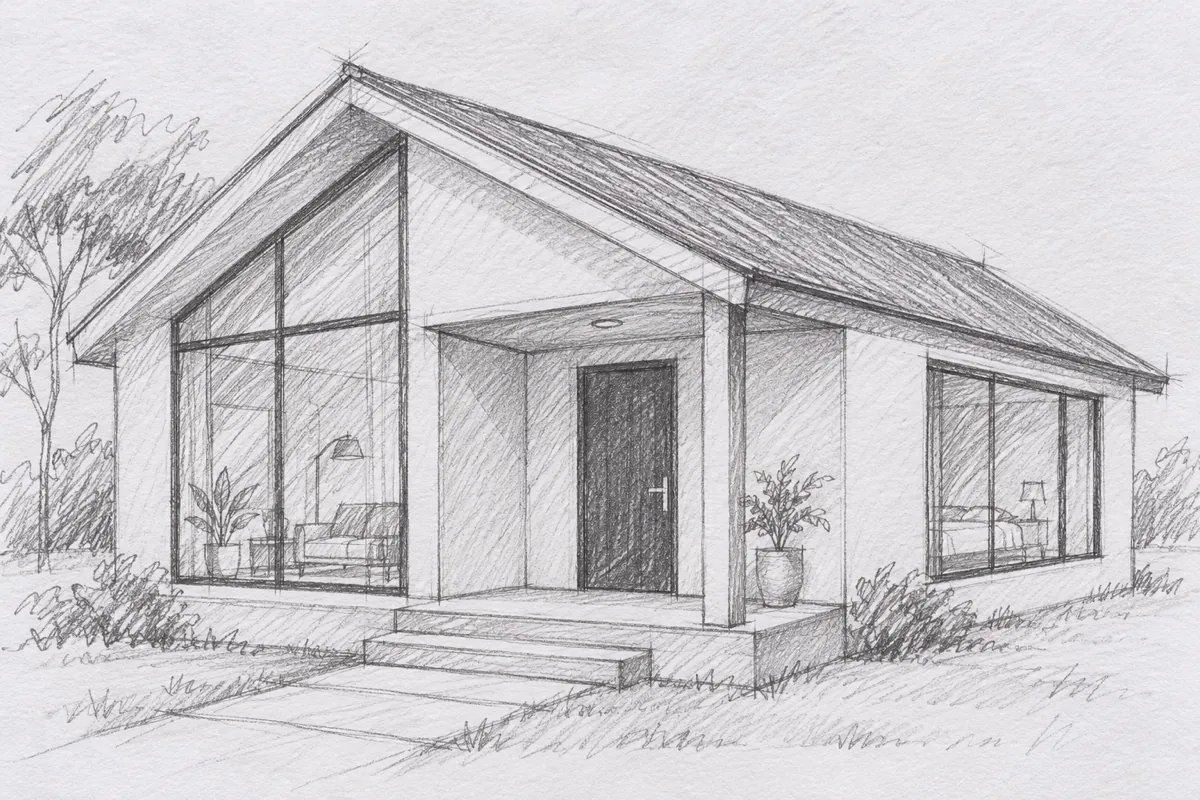 Sketch to render
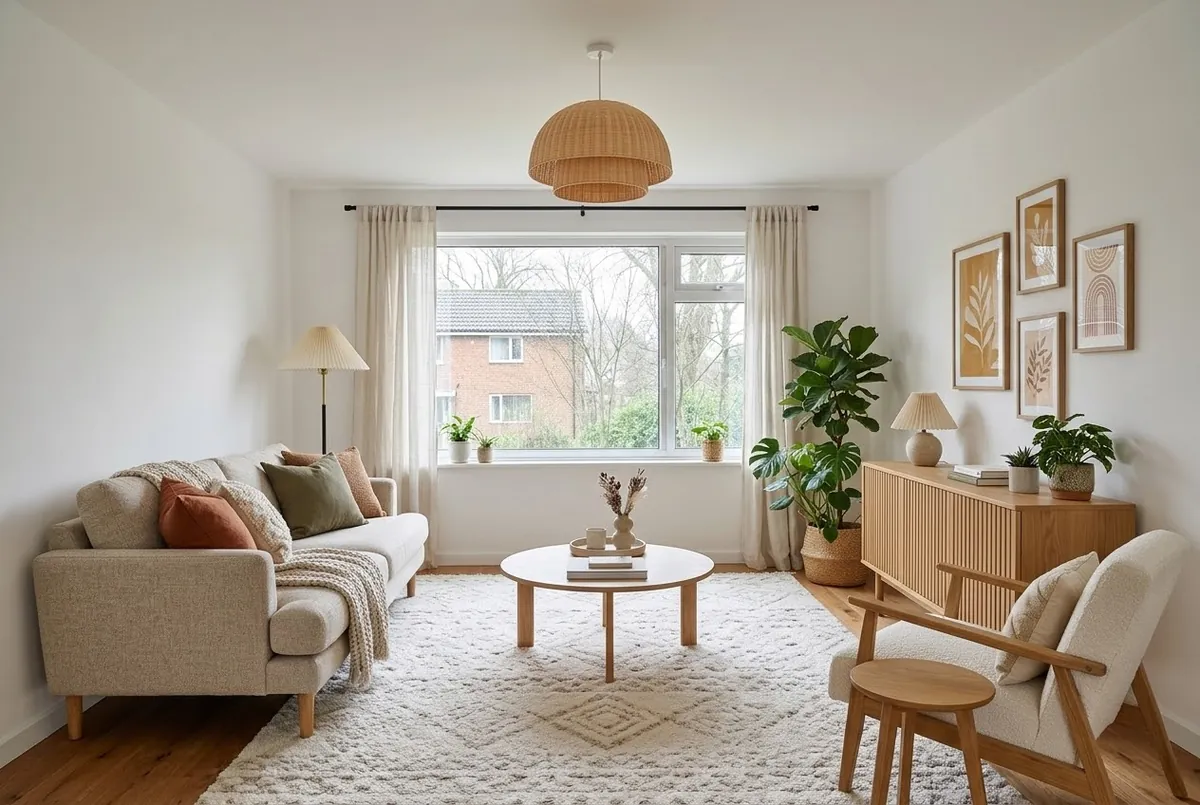
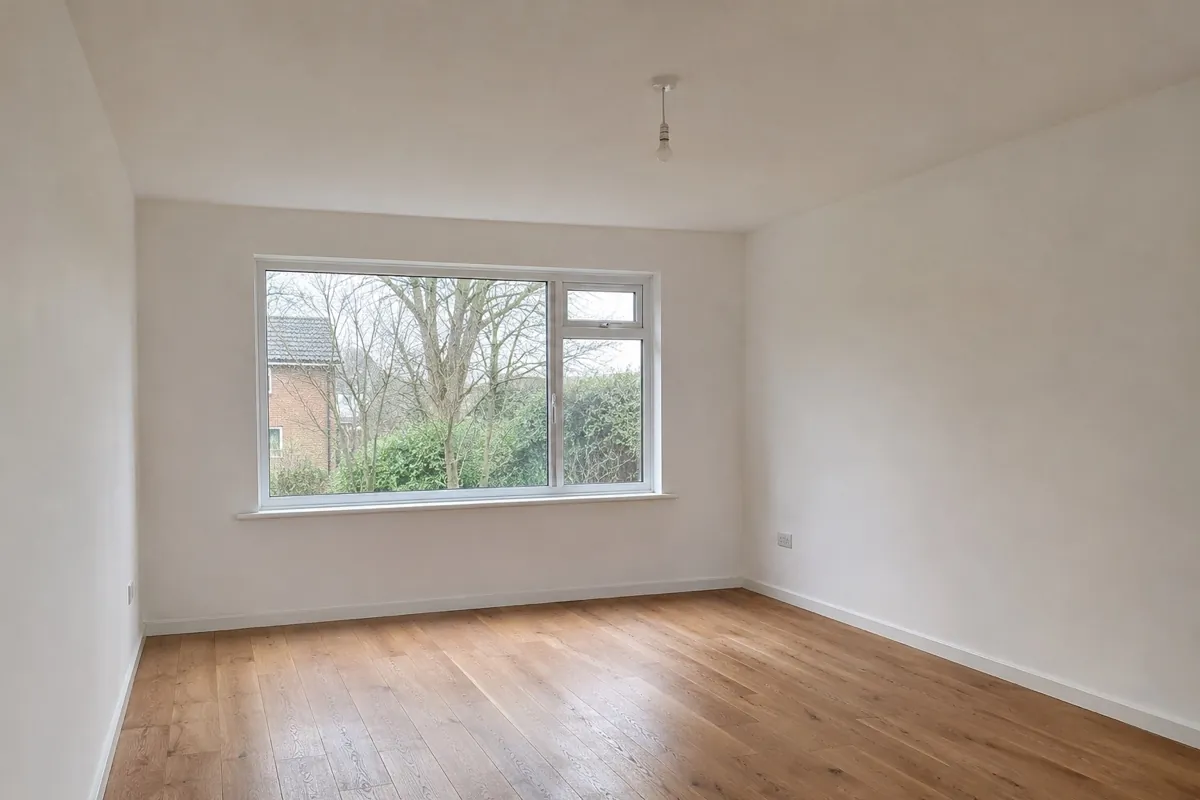 Empty room to interior
Live · default model
Runs on Nano Banana 2
Google's image editing model. It keeps faces, products and layouts steady while it changes what you ask for. Every image to image example on this page was made with it: 1 credit per image, about 35 seconds.
Planned
Seedream 5.5
GPT Image 2.6
Not available yet. More image models will appear in the model menu once they are tested here.
Free means free. Here is the whole deal.
3 a day
Free images without an account. Google sign-in adds 10 credits; 1 credit is 1 image.
No watermark
Download the clean image. Nothing to install, works on desktop, iPhone and Android.
24 hours
Uploads are deleted within a day. EXIF and GPS are removed in your browser. No public gallery, not used by this site to train AI.
Free image to image at a glance
| Price | Free. Up to 3 images a day without an account. |
|---|---|
| Sign up | Not required. Optional Google sign-in adds 10 free credits (1 credit per image). |
| Watermark | None. No logo or visible watermark is added to your results. |
| Install | Nothing to install. Works in modern browsers on desktop, iPhone and Android. |
| Upload formats | JPG, PNG and WebP, up to 3 images per request. Large photos are resized in your browser before upload. |
| Speed | Usually under a minute (about 35 seconds in our own tests). |
| AI model | Google's Nano Banana image editing model, which follows plain-English instructions. |
| Privacy | Photo location data (EXIF/GPS) is removed in your browser before upload. Uploads are deleted within 24 hours, never shown in a public gallery and not used by this site to train AI. |
What is image to image AI?
Image to image AI takes a picture you already have and turns it into a new picture based on a written instruction. Instead of starting from a blank canvas like text-to-image, the model reads your upload first, so the new result keeps the parts that matter: the pose, the layout, the face, the product shape.
That makes image to image the fastest way to restyle a photo, put a product on a new background, try a different outfit, or turn a sketch into a finished illustration. You describe the change in plain English, and the AI does the editing for you. There are no layers, masks or brushes to learn.
Free Image to Image runs the whole workflow in one page: upload, prompt, generate and download. There is nothing to install, it works on desktop and mobile, and you can start your first image to image edit without creating an account.
How to use the image to image generator
Add a photo
Drop, paste or pick a JPG, PNG or WebP picture. You can add up to 3 images. Big phone photos are resized in your browser first, so uploads stay quick.
Describe the change
Write what should change in one or two sentences, or tap an example such as Outfit change or Product shot to start from a ready-made prompt.
Generate
Press Generate. The image to image AI reads your picture and your words together, and most results are ready in under a minute.
Download or try again
Save the result, use it as the next input, or tweak a few words in the prompt and generate another version until it looks right.
Tips for better image to image results
- Start with a clear, well lit photo. The AI can only keep details it can see, so blurry or very dark pictures give weaker results.
- Say what to keep as well as what to change, for example “keep the face the same” or “keep the composition”.
- Change one thing at a time. A short prompt usually gives a cleaner image to image result than a long list of edits in one go.
- Name a style precisely: “watercolor”, “pixel art” or “1990s film photo” work better than “make it nicer”.
- For realistic edits, add words like “photorealistic” or “natural lighting” so the model does not drift into an illustration style.
- With more than one image, say which is which: “the fox from image 1 and the robot from image 2”.
- If the first try is close but not right, edit the prompt and generate again instead of starting over with a new photo.
Frequently asked questions
Is this image to image AI free?
Yes. You can create up to 3 images a day for free in your browser without signing up. Signing in with Google gives you 10 extra free credits, and each generation uses 1 credit.
Do I need to sign up?
No account is needed for your first edits. Just add a photo, type your prompt and press Generate. Sign in with Google only if you want free credits to keep going after the daily free tries.
Is it unlimited?
No. To keep the service running for everyone, free use is limited to 3 images a day per visitor. If you need more, sign in with Google for free credits.
Do the results have a watermark?
No. We do not add a logo or visible watermark to your results, so you can download and use the picture as it is.
Is it safe to upload my personal photos?
Your photo is resized in your browser first, which also removes location metadata such as EXIF and GPS. It is then sent to our AI provider only to create your result, deleted automatically within 24 hours, never shown in a public gallery and not used by this site to train AI. Please only upload photos you have the right to use.
Which image formats can I upload?
You can upload JPG, PNG and WebP images. Large photos are resized in your browser before upload, so you do not need to shrink them yourself.
Can I use more than one image?
Yes. You can add up to 3 images to one request, for example two characters to place in the same scene. Tell the AI which image is which in your prompt.
How long does it take?
Most images are ready in under a minute. In our own tests a photo-to-anime edit finished in about 35 seconds.
Which styles can I try?
Anything you can describe: anime, watercolor, oil painting, pencil sketch, 3D cartoon, pixel art, vintage film, product photography and more. The examples on this page are a good starting point.
What is the difference between image to image and text to image?
Text to image creates a picture from words alone. Image to image starts from your own picture and changes it, so the new image keeps the pose, layout and subject of your upload.
Why doesn't my result look exactly like the original?
The AI redraws the whole picture, so small details can shift. Add “keep the face the same” or “keep everything else unchanged” to your prompt, and generate again if needed.
Can I use it on my phone?
Yes. The tool works in mobile browsers on iPhone and Android. Tap the Image button to pick a photo from your gallery or camera.